Dream League Soccer 26 (DLS 26) allows players to customize their teams with real kits and logos. The Dream Kits Soccer 2026 app makes this process simple by providing all team kits and logos in a ready-to-use format.
This guide explains step by step how to import any team logo and kits in DLS 26 using only Dream Kits Soccer 2026.
Requirements
How to Import Any Team Logo and Kits in DLS 26
- Dream League Soccer 26 installed
- Dream Kits Soccer 2026 app installed
- Internet connection
- Kit import feature unlocked in DLS 26
Note: Dream Kits Soccer 2026 already provides kits and logos in 512×512 PNG, so no resizing or editing is required.
Step 1: Choose Kits in Dream Kits Soccer 2026
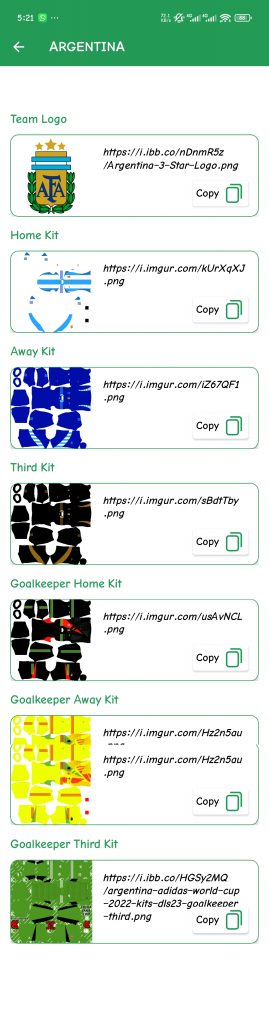
Open Dream Kits Soccer 2026 and search for your desired team. Each team includes home, away, third, goalkeeper kits, and the official logo.

Home, Away, Third, and Goalkeeper kits available.
Step 2: Copy the PNG URL
Tap on the kit or logo and select Copy URL. The app provides a direct PNG link that works perfectly in DLS 26.
Always copy the full link ending with .png. Dream Kits Soccer 2026 App provides correct links by default.
Step 3: Import Kits in Dream League Soccer 26
- Open DLS 26
- Go to My Club → Customize Team
- Select Edit Kit
- Paste the copied PNG URL
- Confirm and save
Importing custom kits in Dream League Soccer 26 Tutorial
Step 4: Import Team Logo
- Go to Edit Logo
- Paste the logo PNG URL
- Save changes
Common Problems & Solutions
Kit or Logo Not Loading
- Check your internet connection
- Ensure the full PNG URL is pasted
- Restart DLS 26 and try again
Only use kits and logos from Dream Kits Soccer 2026 for the best quality and compatibility.
Conclusion
Dream Kits Soccer 2026 is the easiest and most reliable way to import any team logo and kits in DLS 26. With ready-made PNG files, you can customize your team without any extra tools.